
Manual
How Film Kit works
Film Kit follows one film from the script to the locked mag card. This manual goes section by section: what each screen is for, how to use it, and where it can go wrong. Pictures are cropped to the part that matters, and the short animations are the same actions recorded live. Choose Desktop, Tablet or Phone above to see the screen you will use; the layout differs on each.
What is free, and what is in testing
The mag card is free. Film is expensive enough. Your takes, your reports and your exports are never behind a paywall. Everything that stands alone with the mag card is open and free.
The planning tools are built but untested on real productions, so they are held back. They show a padlock, which means In testing, not that you have to pay for something today. When they work properly they will be a paid tier. Nothing is priced yet. A phone and tablet app is planned.
| Part | Where | Status |
|---|---|---|
| Mag card: timing, takes, footage maths, Missed takes, Undo | Shoot | Free |
| Camera report: every take in one table, CSV export | Shoot | Free |
| Prep: project, equipment, stock, format, shoot days, budget | Prep | Free |
| Shot list / Shot Cards | Documents and Shoot | Free |
| Wrap: finish, unload, label and lock each mag | Wrap | Free |
| Script and lining, Stripboard, Shot plan, Call sheet, Work Days, Forms | Documents (call sheet also on Shoot) | In testing |
| Board and its forecast | Board | In testing |
Your projects and data are never held back. Wrap, backups and CSV export always work.
The idea
Prep is where the production is set up. Shoot records what happened, take by take, on the mag card. Wrap takes each mag to locked. In testing Documents is the plan and the only place it changes: script, stripboard, shot list, shot plan, call sheet and Work Days share their numbers, so a change on the stripboard moves the shot plan, the call sheets and the forecast. Board compares what is left to shoot with the film you hold.
Your first project
The free route is four steps, and it is enough to run a shoot day.
- Prep, Project. Name the production and set the shoot calendar: the work days and the rest days.
- Prep, Equipment, Stock, Format. Add the camera and magazines, the cans of film, and the gauge and frame rate. Every footage figure comes from these, so spend the time here.
- Shot list. Load a list or start one: size, lens, camera and takes for each shot.
- Shoot, Mag card. Pick the mag, set slate and take, and press Roll. When the mag is done, Wrap it.
The planning side is still in testing and is held back for now. It is designed to let you plan the days before you shoot them: In testing
- Script. Upload or paste it. Line the script so each shot knows which lines it covers.
- Stripboard. It builds itself from the scene headings and counts the eighths. Spread scenes over days for a first plan, then move scenes with the day menu, split a long scene, or add a day.
- Shot plan. Shots are arranged into days against your working hours, lenses and cameras.
- Call sheet. One per day, with times, checks against the shot list, and the AD sign-off. Shoot reads it for what is next.
- Back to Prep. The Days and Connections panels show anywhere the documents disagree.
Screen by screen
Prep Free
The first screen of a project. Overview shows what is set up and what is still open before the next roll, then the Days and Connections panels. Project, Equipment, Stock, Format and Budget each edit in place, or choose Step through all of it to be asked one question at a time.
- Project: the production’s details and the shoot calendar. The day count comes from the calendar.
- Equipment: cameras and their magazines, lenses, supports.
- Stock: the cans you hold, with length and emulsion, and any stock already loaded.
- Format: gauge, perforations and frame rate. Feet per second follows from them.
- Budget: stock and process cost per foot against the total, for the Board.
A roll stays locked on its mag card until its head test is logged.

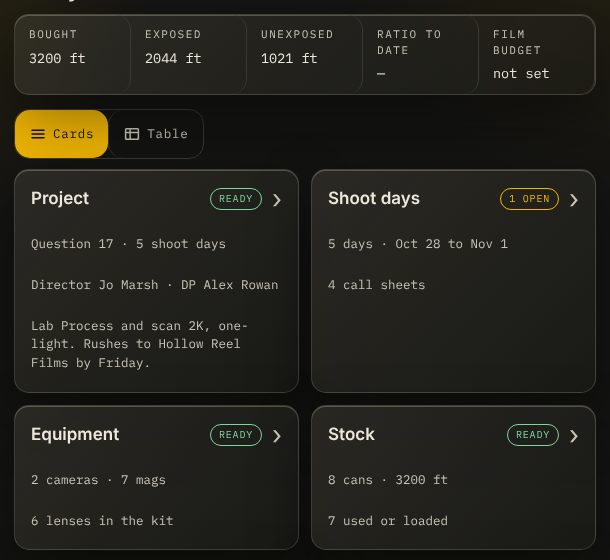
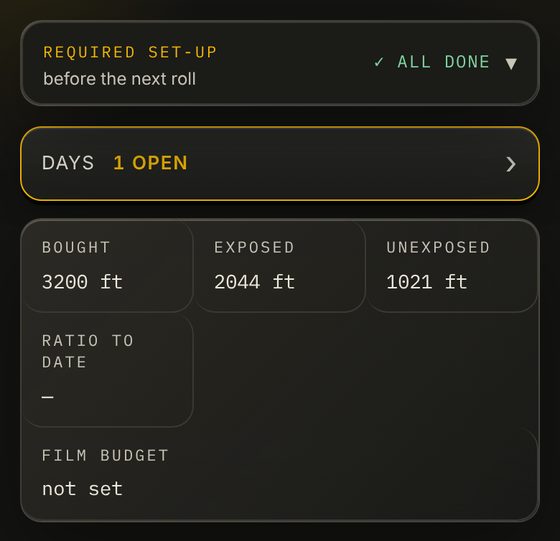
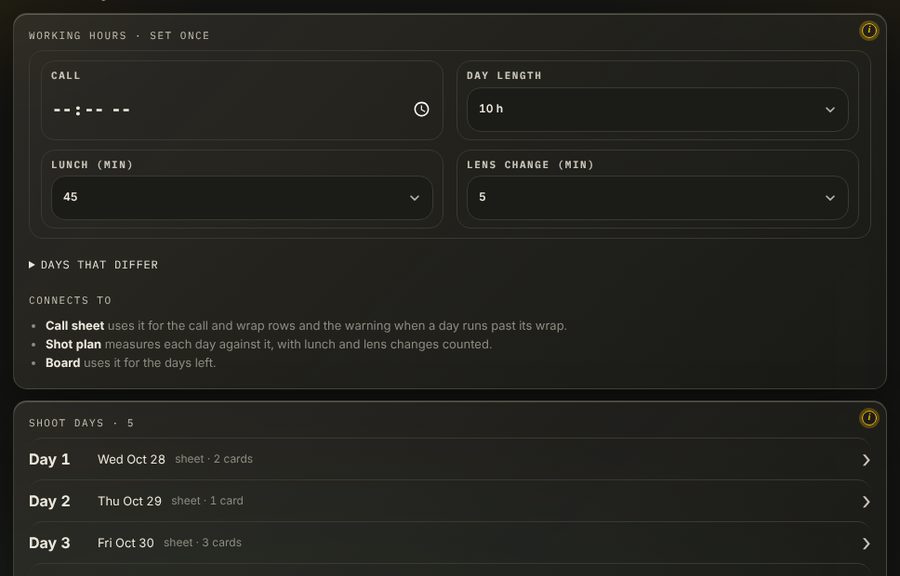
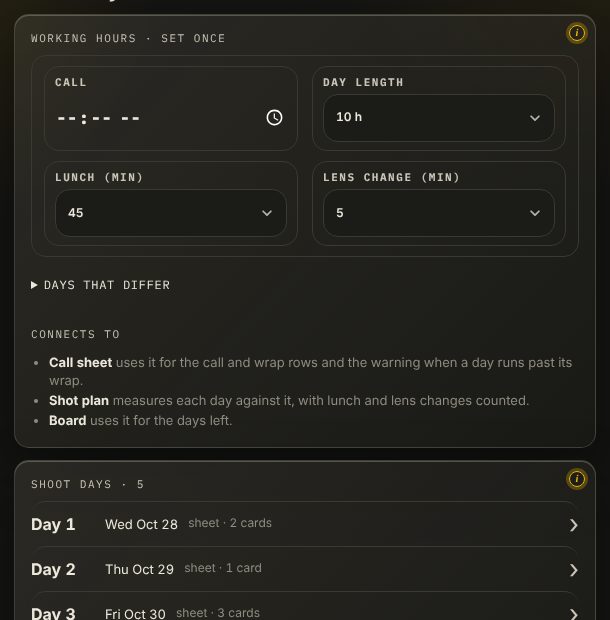
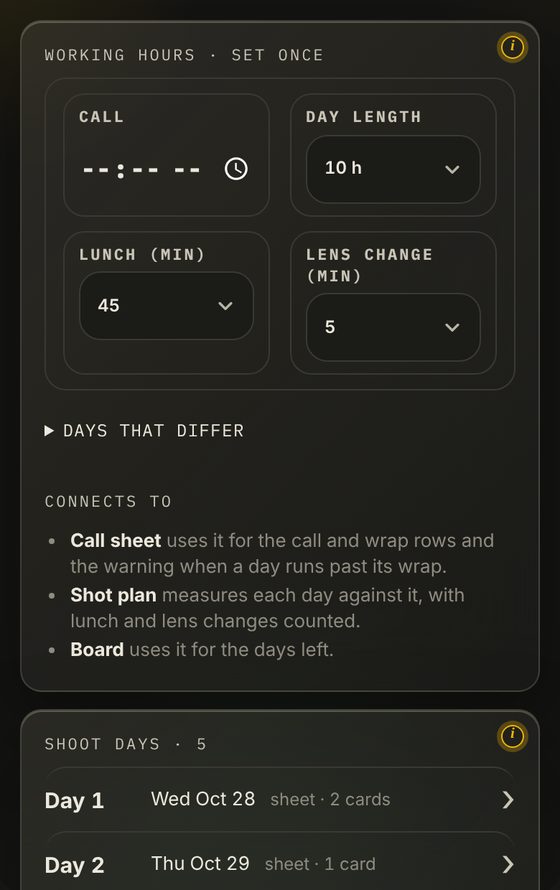
Shoot days. Prep shows one row per planned day: its date, scenes, call sheet and mag cards. Open a day to add a day after it, remove it, change its date, or open its call sheet. The project keeps one list of days, so the calendar, call sheets, stripboard and mag cards renumber together, and every change has an Undo. A day with logged takes cannot be removed, and a day cannot be added before footage that is already shot. Working hours are set once here: normal call, day length, lunch and lens-change time, and any day that differs.
Shoot, Mag card Free
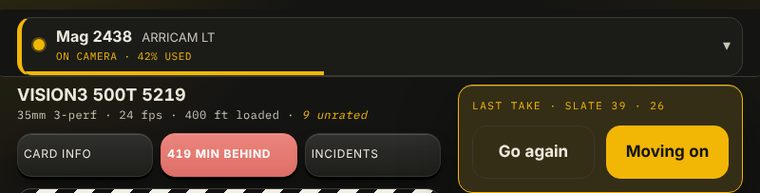
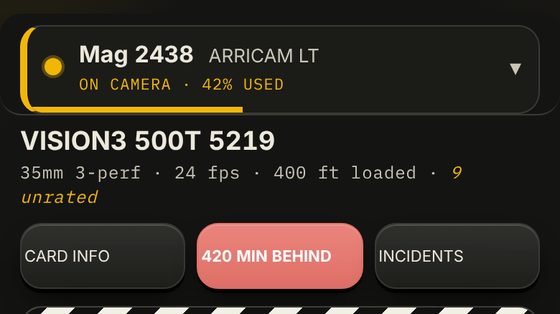
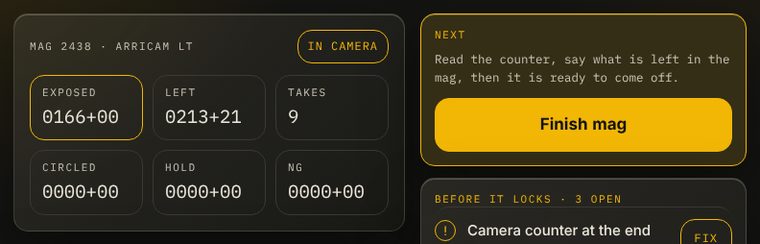
The live screen for the camera department, built to be used with one thumb. Under the mag drop-down the title shows stock, format and load, with three buttons: Card info (day, stock, format, load, rolls, camera, mag, can, and Edit details), On time / behind (opens the schedule check; red when late) and Incidents. The next take shows the shot number, with Load shot, Clear and Shot info beside it. Slate, Scene and Take sit in one row (Slate and Take each have a plus over a minus), then lens and aperture, Rehearse and a full-width Roll. On a phone, Pin keeps the card above the bottom navigation while you scroll. Undo and Redo in the top bar step back through your edits (cleared when you reload, and paused while a take is rolling). The drop-down is grouped by shoot day, latest first.
- Roll starts the take. The timer, the feet and the film left run on the screen.
- Cut ends it. Footage used and left are worked out as you go.
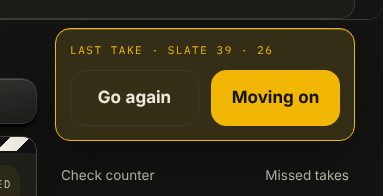
- Choose Go again for the next take of the same setup, or Moving on for a new one. Moving on is the moment for the gate check; Not yet leaves the take flagged and you can check it later.
Scrolling down hides the top bars and the bottom navigation; scrolling up brings them back. Help in the top bar opens the in-app guide, and the i icons hold how each part works.

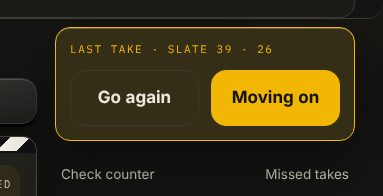
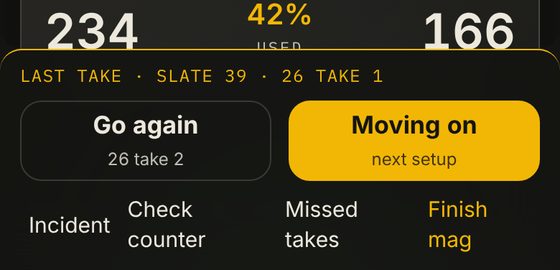
If the timer failed
The screen froze, the app closed, or nobody pressed Roll. Under the take buttons:
- Missed takes enters several at once from counter readings.
- Check counter: read the counter on the magazine and type the feet. It shows how far the timer has drifted from the counter, and changes nothing in your footage maths unless you choose to.
Shot Cards Free
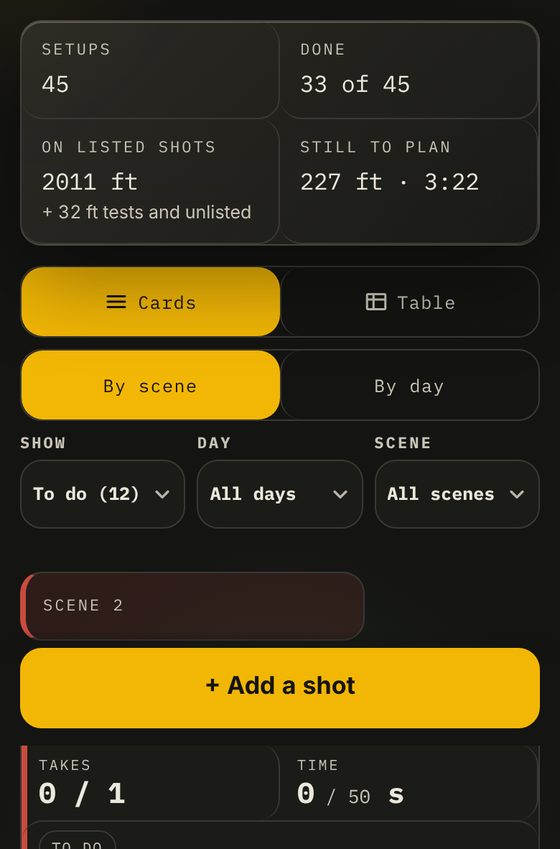
On Shoot (as Shot Cards) and on Documents, the same list. On Documents, Edit cells edits the table in place and Add shot shows the new row highlighted. Shooting days on the left, the list grouped by scene, filtered by size, with the mag in camera shown. Switch between Cards and Table. Tap a card or a row and the shot opens as a pop-up.
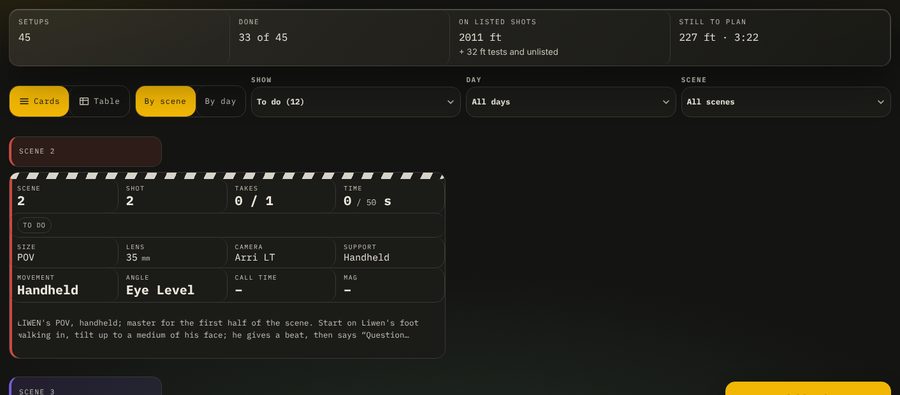
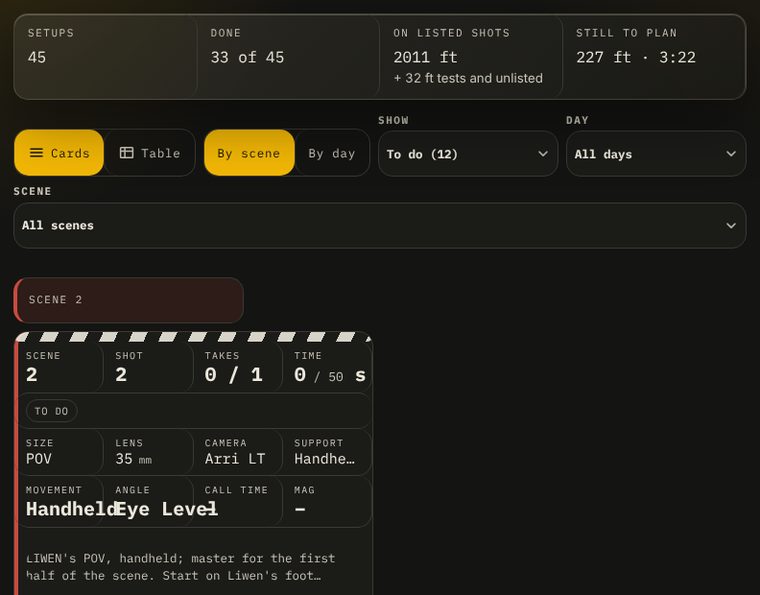
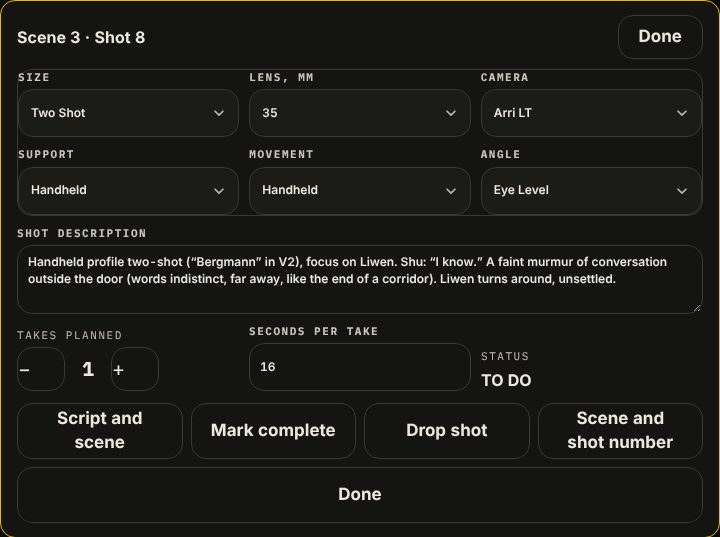
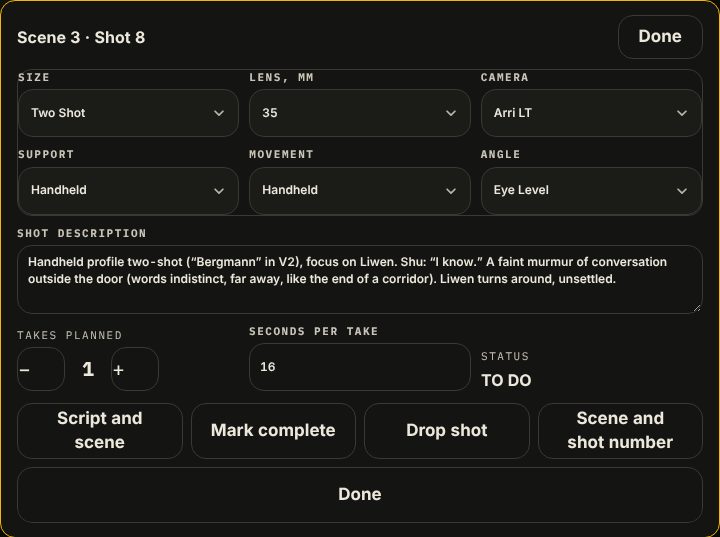
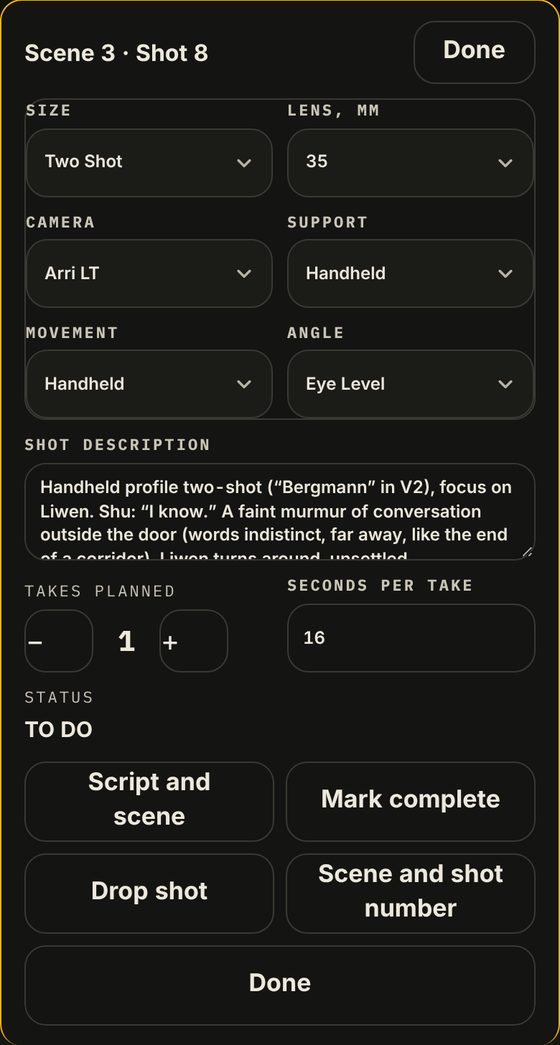
Size, lens, camera, support, movement and angle are dropdowns; choose Other to type your own. When the script is lined, a lined shot fills in its own take length from the script (about a page a minute) unless you type one.
Wrap Free
Each mag from finished to locked, with its label, lab sheet and the checks on its card. See After the day.

Documents In testing
The plan. The tabs, in the order a production builds them:
| Tab | What it does | |
|---|---|---|
| Overview | What exists and what is held back. | Free |
| Script | Read it, line it to shots, see coverage by scene. | In testing |
| Stripboard | Scenes by day, with eighths. Split a scene, join it back, add or remove a day. | In testing |
| Shot list | As above. | Free |
| Shot plan | Shots laid over the days with lens changes and kit checks, measured against your working hours. | In testing |
| Call sheet | Each day’s schedule. Changing a start or a length moves the rows after it. | In testing |
| Work Days | Who works which day: cast, crew and vendors, with clashes. | In testing |
| Forms | Daily production report, meal report, credits, set map, AD morning guide. | In testing |
These tools are held back while they are tested on real productions, so there are no screenshots of them here yet. The Overview tab and the Shot list are open. Everything else on this list shows a padlock that means In testing.
Camera report Free
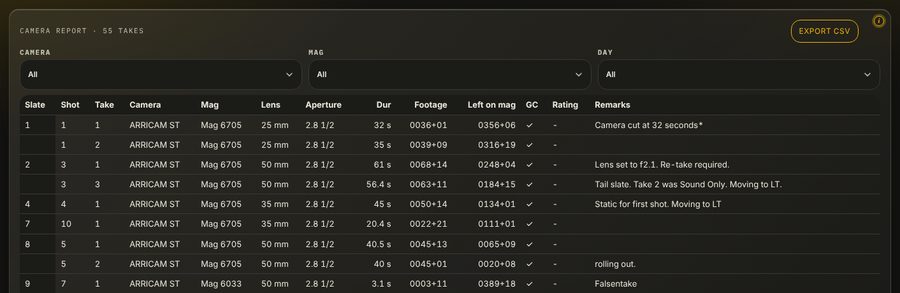
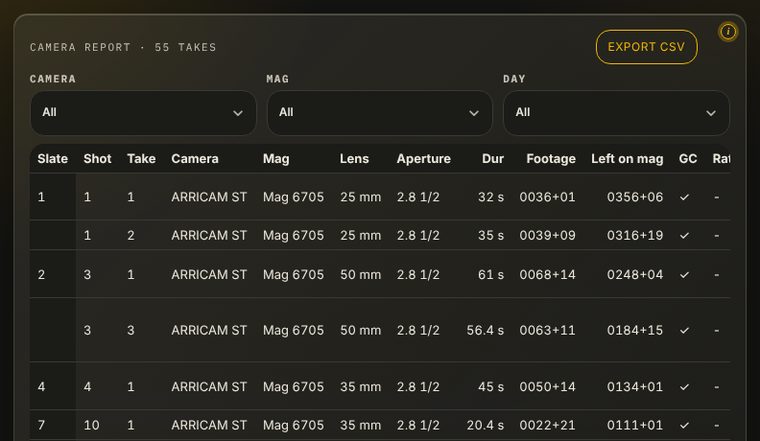
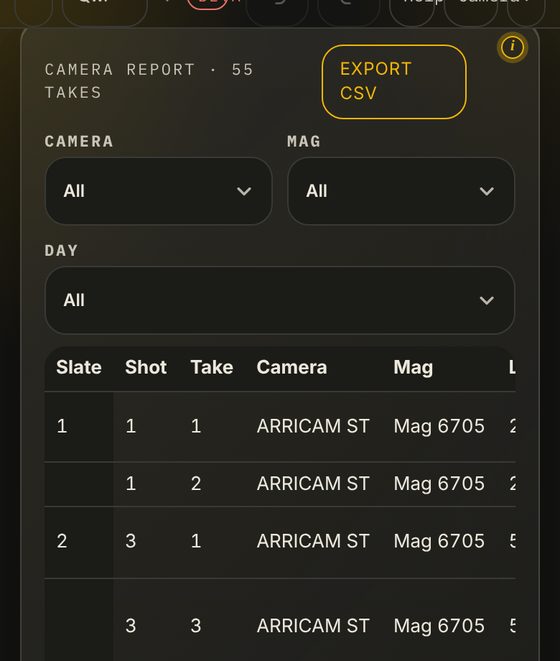
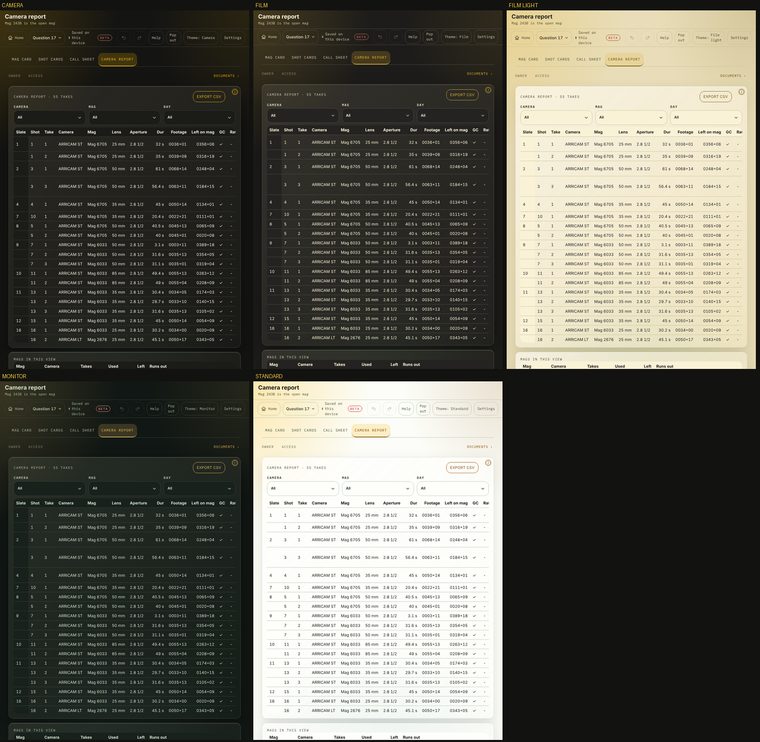
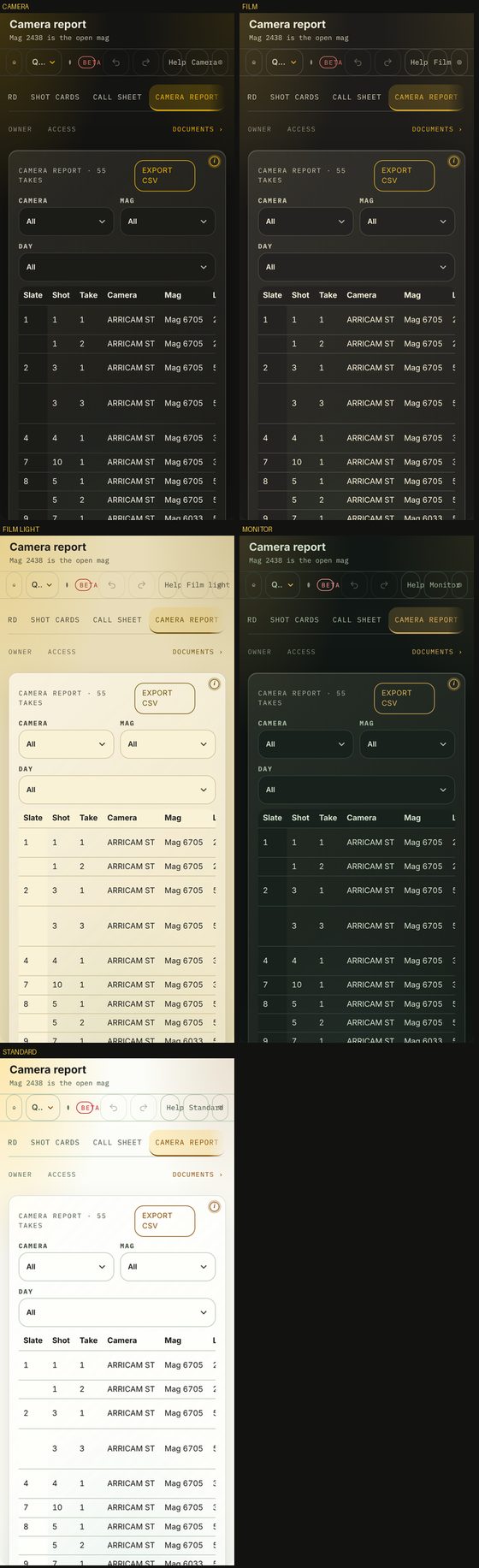
On Shoot, Camera report lists every take from every mag in one table, in slate order: slate, shot, take, camera, mag, lens, T, duration, footage, gate check, rating and remarks. It reads the mag cards and never keeps its own copy, so edit a take on its card (tap a row). Left on mag is the footage remaining after that take. Filter by camera, mag or day, and Export CSV saves what is showing.
Board In testing
The forecast: shots left, the film they need, the usable stock, and the contingency. It is held back while it is tested, so it shows a padlock for now.
Checks
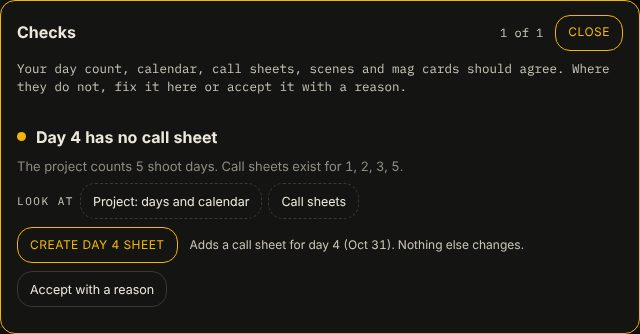
Checks are one button on Prep and Wrap, and on the planning tabs once they open. The example below is the one on Prep. A check button opens a window that steps through them with Next and Previous. Press a fix, look at the place it points to, or accept it with a reason.
On the day
- Roll starts a take and Cut ends it. After a cut you choose Go again or Moving on.
- The gate check is recorded against the take. A take without one is flagged before you move on.
- Next up comes from your shot list (and the call sheet).
- Footage used, footage left and what the mag will still cover are worked out as you go.
- If something goes wrong with the camera, Incidents logs it against the take.
- If the timer failed, use Missed takes.
- The first Roll after a long break, or after End Day, asks whether to start the next shoot day. A Day line goes into the take log and each take keeps the day it was shot on, so a mag that carries over reports its takes on the right day. Standby, camera changes and a mag going on or off a camera are written in the log by themselves.
- Label things the way your tape does: a roll name in Card info, Edit details (Roll 1, Pikachu), a camera or magazine label in Prep, Equipment (A, B). They show beside the number everywhere, including the can label.
- At wrap, press End Day (above the take log, in Wrap, or in the End of Day report). Mags still on a camera carry over.
After the day
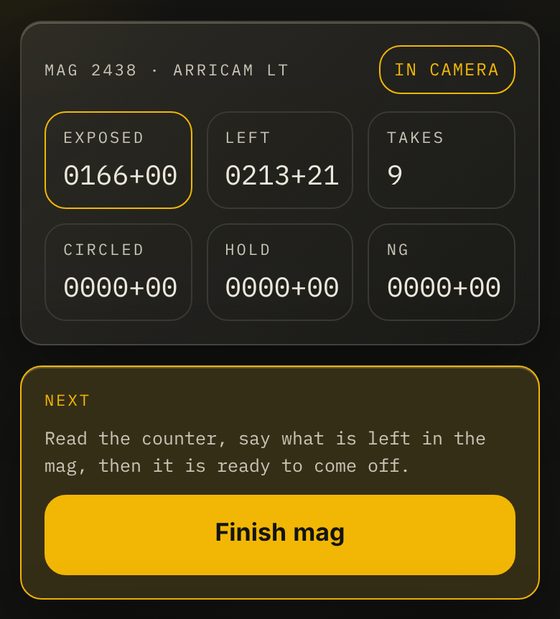
Each mag moves through five steps: Loaded, In camera, Finished, Unloaded, Locked.
- Finish the mag: read the counter and say what is left.
- Take it off the camera.
- Unload it. The guide walks through it and what goes on the can.
- Label the can and fill in the lab sheet. The label reads from the mag card, and anything marked not filled in is missing from it.
- Lock it. A locked card is recorded as it was.
Flags: read, trace, fix, accept
Every flag has the same parts, wherever you meet it.
| Part | What it gives you |
|---|---|
| Why | A sentence with the numbers: “Project says 5 shoot days. Call sheets exist for 1, 2, 3, 5.” |
| Look at | Buttons that jump to each place the flag comes from. |
| Fix | A button that changes the data. The line beside it says exactly what changes. Undo is in the message at the bottom for a few seconds. |
| Accept with a reason | Keeps a flag you have decided is fine. It records your reason, who accepted it and when. |
| Reopen | An accepted flag reopens by itself if what it is about changes. You can also reopen it from the Accepted list. |
Where flags appear, and what they can fix
| Where | Flags | One-tap fixes |
|---|---|---|
| Prep: Days | Day count and calendar disagree; a day with no call sheet; a sheet dated differently from the calendar; work on days the project does not count; two sheets for one day; Work Days columns out of step. | Use the calendar’s day count; create the missing call sheet (or all of them); use the calendar date on the sheet, or the sheet date in the calendar; extend the project; add or remove empty Work Days columns; cut a last day that is empty. |
| Prep: Connections | Script scenes missing from the stripboard; scenes with no shots; shots for scenes that do not exist; shots not on a call sheet; call sheet rows not in the shot list; a stripboard day that disagrees with its call sheet; characters not on the cast list; format that differs between project, shot list and mag cards. | Build or complete the stripboard from the script; add missing characters to Work Days cast; for a day that disagrees, move the stripboard to match the call sheets or move the shots to the days the stripboard says. |
| Documents: Stripboard | An empty day; a scene longer than a day; a heavy or light day; many locations; day and night on one day. | Remove an empty day; split a long scene; move a scene to the lightest day, or pull one from the heaviest. |
| Documents: Call sheet | Times that do not join up; lenses missing from the kit; call sheet and shot list disagree on lens or camera; scene order; camera swaps; AD sign-off. | Add the lenses to the kit; use the shot list’s values on the sheet or the sheet’s values in the shot list; read durations as minutes:seconds; confirm with the AD. |
| Documents: Work Days | Unfilled role; a clash; not confirmed; booked twice; nobody confirmed in a department; plus the day flags above. | Blank the days; mark X; mark confirmed. |
| Board: Forecast | Shots with no footage estimate; shots left need more film than you have; essential coverage exceeds stock; remaining days not set. | Estimate from the lined script. |
| Wrap: mag card | Camera, gauge, stock, magazine, day and date checks; gate checks; counter. | Set the card to the call sheet’s day or date. |
Some flags have no one-tap fix because the right answer depends on a decision only you can make, such as whether a clash means finding cover. They still say why, show where to look, and can be accepted with a reason.
The i icon
A circled i beside a title holds how that part works. Tap it to read; tap anywhere else, or press Esc, to close. A ring shows around it until you have opened it once on this device.
Warnings, numbers, and anything that tells you what is missing always stay on the page. Only explanation goes in the icon.
Settings Free
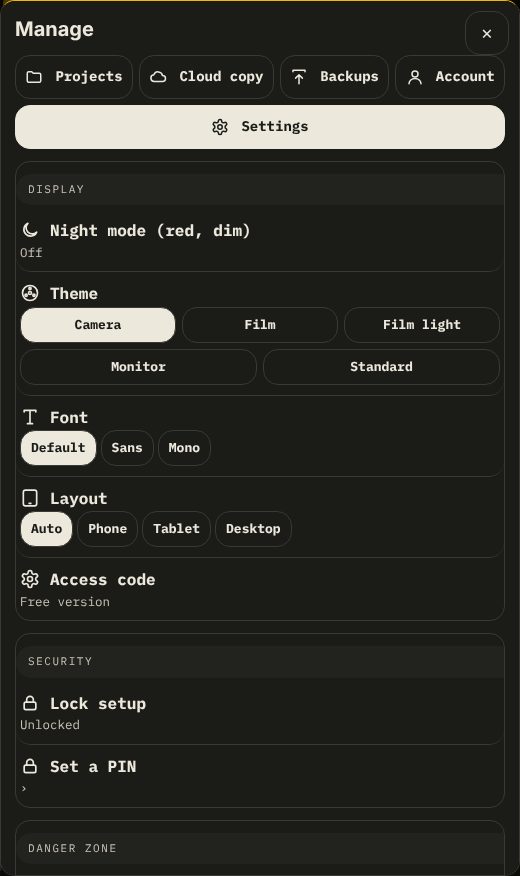
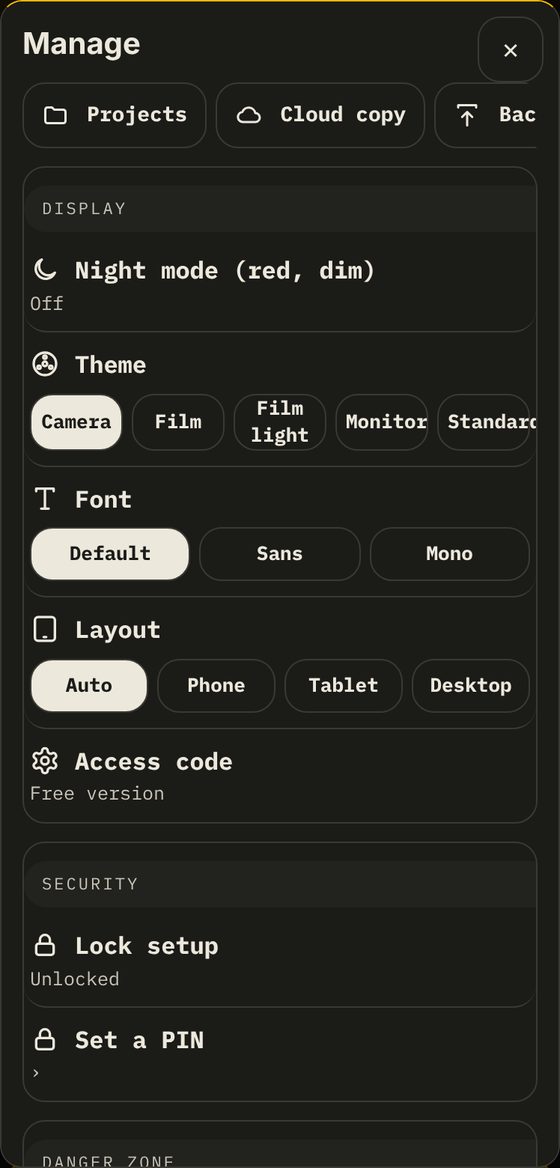
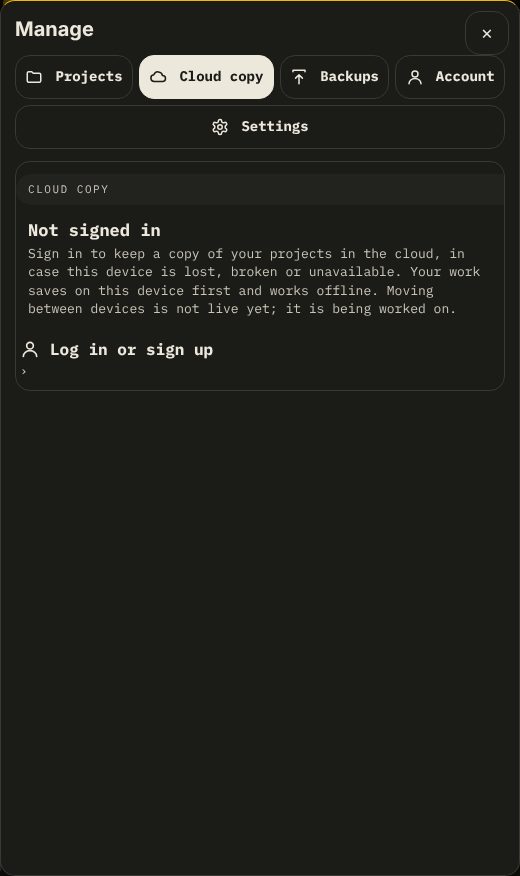
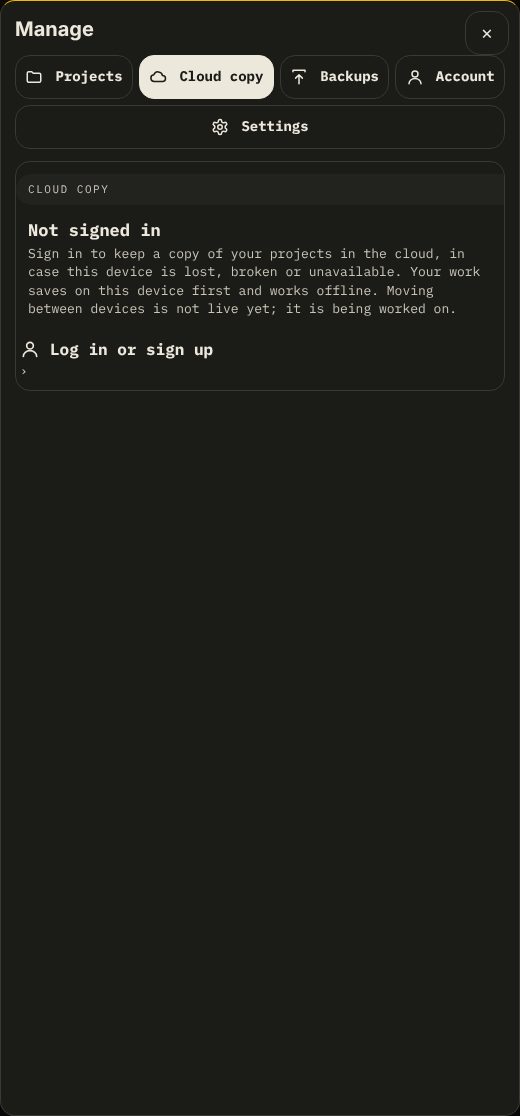
Open Settings in the top bar (on a phone, from the menu). The same window has five tabs: Projects, Cloud copy, Backups, Account and Settings.
Display
- Night mode (red, dim): a dim red screen for dark sets.
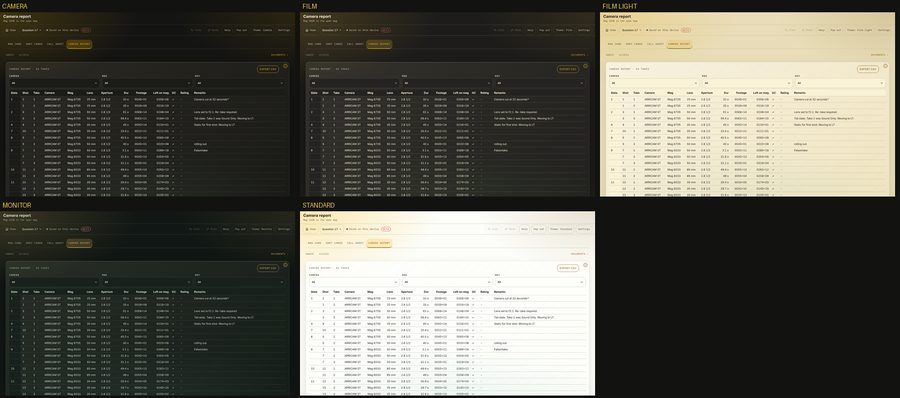
- Theme: five looks, all open in the beta. See below.
- Font: Default, Sans or Mono. Try Sans if the default is hard to read at arm’s length.
- Layout: Auto follows the screen size. Phone, Tablet and Desktop force one layout whatever the screen size.
| Theme | Look |
|---|---|
| Camera | Amber on near-black. The default. |
| Film | Film Stock, dark. |
| Film light | Film Stock, light. For daylight. |
| Monitor | Near-black with pale green. |
| Standard | Plain and high contrast. |
Security
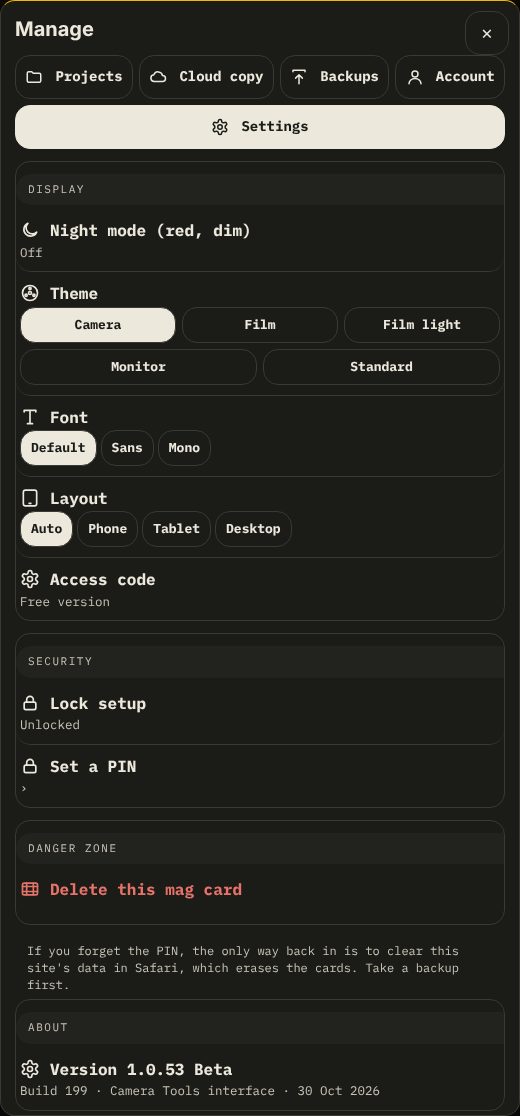
- Lock setup locks the setup fields on the mag card (stock, format, load and the like) and the Enter-takes-later sheet until it is unlocked, so a stray tap cannot change your numbers.
- Set a PIN (4 to 6 digits) is needed to unlock. If you forget it, the only way back in is to clear this site’s data, which erases the cards on this device. Back up first.
Danger zone
Delete this mag card removes the card that is open. Back up before you delete anything you may need.
The other tabs
- Projects: edit the project’s details, back it up, open another project or start a new one. Switching restarts the app on the other project. Clean up mag cards finds and removes duplicate cards.
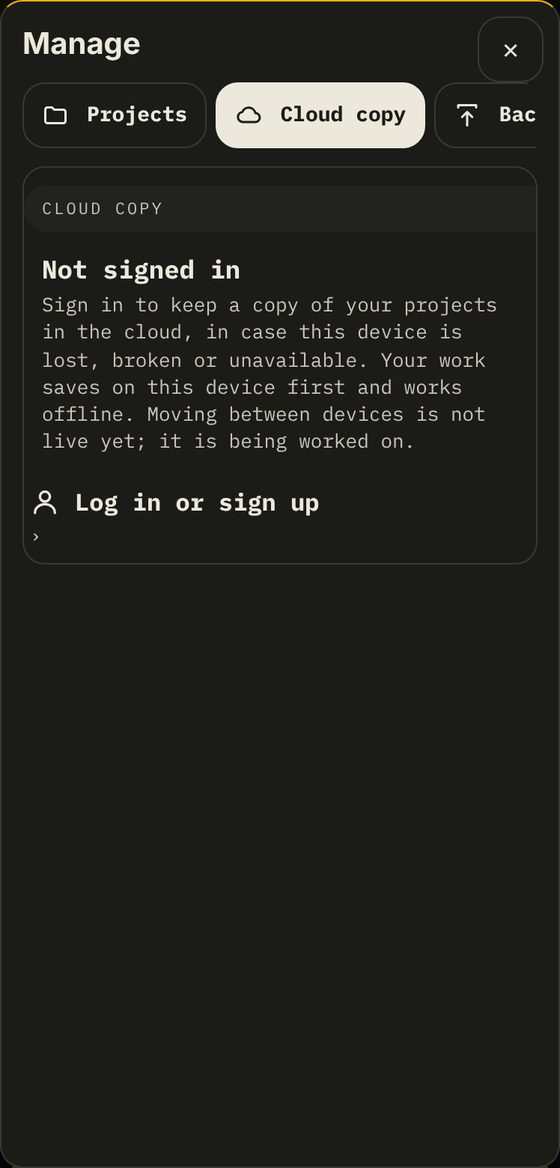
- Cloud copy: optional. Sign in and a copy of your projects is kept in the cloud, in case this device is lost, broken or unavailable. It is a safety net, not live syncing between devices, which is being worked on. Your work saves on the device first and keeps working offline.
- Account: whether you are signed in, and what is free. Signing in is only for the cloud copy; the free parts do not need it.
Backing up and restoring Free
Everything is saved on this device as you work, and the header shows when it last saved. That copy lives in this browser only: clearing the site’s data, or losing the phone, loses it. Back up at the end of each shoot day.
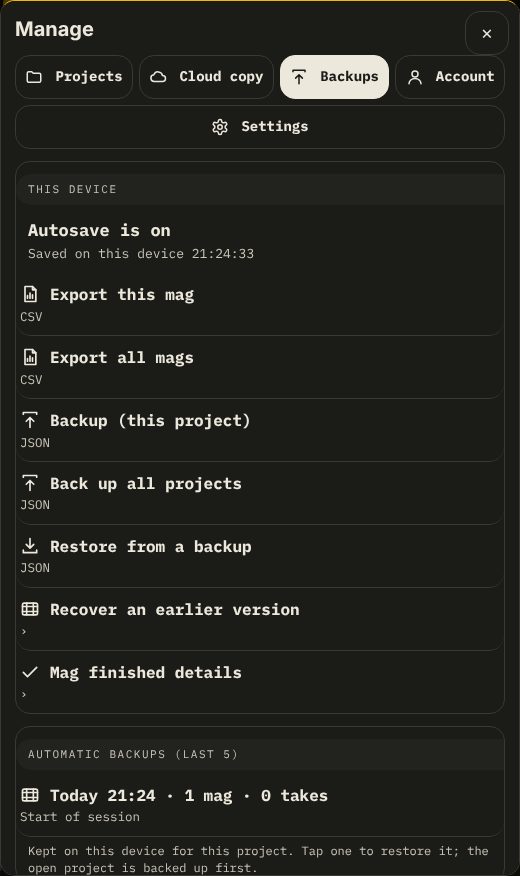
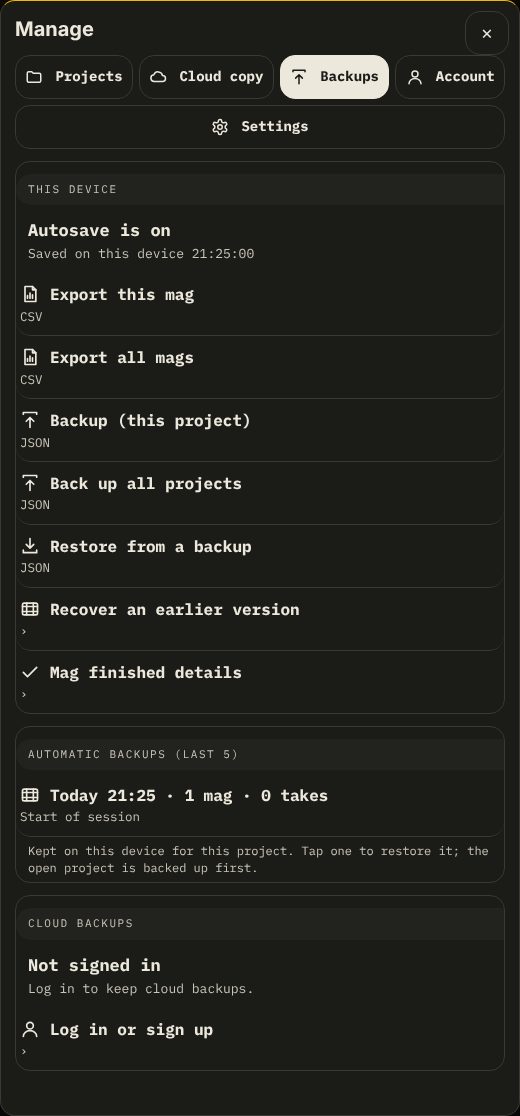
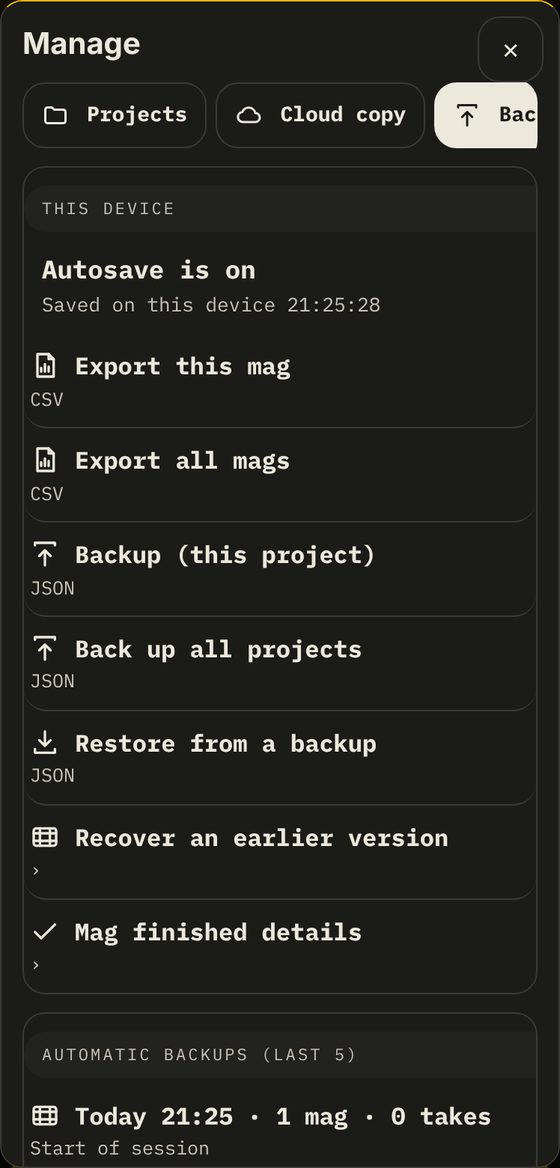
- Settings, Backups, Backup (this project) saves a JSON file. Send it to yourself or put it in Files or a drive. Back up all projects does every project.
- Export this mag and Export all mags save CSV for the lab or a spreadsheet.
- Restore from a backup reads a JSON file back in.
- Automatic backups (last 5) are kept on this device. Tap one to restore it; the open project is backed up first.
- Recover an earlier version brings back work from before a change. Your current version is kept as well.
- Cloud backups need a sign-in.
Install on your phone or tablet Free
Film Kit runs in the browser and can be installed like an app. Once it has loaded fully while you are online, it works with no signal.
- iPhone and iPad (Safari): open the address, tap Share, then Add to Home Screen.
- Android (Chrome): open the menu, then Install app or Add to Home screen.
- Computer (Chrome or Edge): use the install icon at the right of the address bar.
Before a shoot day: open the app once online, let it finish loading, then turn on airplane mode and open it again to be sure. When a new version is published, it arrives the next time you open the app online; close and reopen it to be on the new version.
Your data
The demo carries a made-up crew and is safe to play with. Your own projects stay on your device unless you sign in to keep a cloud copy. Reports, CSV export and backups are free, and are never locked.
Words used here
| Word | Meaning |
|---|---|
| Eighths | A page is eight eighths. The stripboard sizes each scene in eighths and compares days against the average. |
| Lining | Marking which part of the script a shot covers. |
| Mag card | The record for one magazine: takes, footage used and left, and its checks. |
| Gate check | A check of the film gate. It is logged as one frame and counts as used. |
| Wastage | Film lost threading the take-up side of each load, counted before the first take. |
| Contingency | What is left of the film after the shots still to shoot, as feet and a percentage. |
Beta limits
- The planning tools (Script, Stripboard, Shot plan, Call sheet, Work Days, Forms, Board) are built but untested on real productions, so they are held back behind a padlock.
- The stripboard’s first plan balances pages across days. It does not know about stunts, children, company moves or who is free. Check the Work Days flags for people.
- If the script changes, a stripboard built from it is rebuilt. Each scene keeps its day and split parts stay, but other edits to those strips are lost.
- The footage estimate from lining is about a page a minute. Replace it with your own take length wherever you know better.
- The forecast improves as real days are recorded. It has no day-one calibration yet.
Questions or something wrong: info@kayleblee.com.